5 Step Quick Start to Using Facebook Ads

Michael Weitzman • October 28, 2015

With more than 1.4 billion people having a Facebook profile and more than 900 million site visits, Facebook is the 21st century marketing hub. Facebook creates an easy way to market and reach out to your potential audiences- launching Facebook Ads. So, what are Facebook Ads? Facebook Ads from a users perspective, show advertisements that are relevant to you and your friend’s interests.


As a business owner, these ads are shown to your potential customers. The ads will appear on the news feed (desktop or mobile) and in the right column of Facebook desktop. Facebook decides which ads users end up seeing by: the information users share on Facebook (likes), other info from the account (demographics), & activity on websites or apps off of Facebook. So how as a small business owner use Facebook Ads?

Step 1- Create

With an advertising method in mind, log onto your personal account, click the drop down button on the upper right corner, and click create an ad. Your small business does not actually need a Facebook page to advertise (although we recommend it for marketing campaigns) the owner/manager of the advertisement needs a personal Facebook account to be able to manage and pay for the ads (note-the ads will not link to your profile). Pick your advertising objective, if promoting a website, you will need to provide a URL which will link to your website and let the ad be underway!

Step 2- Target

Facebook ads created a brilliant feature- you pick who you market to. You can select who views your ad using multiple variables. When the ad is created you can pick the type of people who can see the ad by choosing certain traits and keywords. Facebook lets you target by region/location, age, gender, education, workplace, hobbies, relationships, and keywords. Through the provided information shared on your Facebook profile, Facebook generates keywords that are relatable to your website, event, etc. that you are trying to advertise. That is what makes it different from traditional advertising; Facebook can get your ads to the right people at the right time- via ones newsfeed.

Step 3- Design

Facebook ads will have a 25-character headline, a 90-character body description, and thumbnail photograph. Who knew so little content could expand business? Less is more these days, am I right? However, don’t get nervous because these can be updated in real-time. So really feel free to experiment with what looks best. Facebook does have a lengthy set of standards and rules to abide by while using their advertisements. You can refer to the advertising guidelines here.

Step 4- Budget

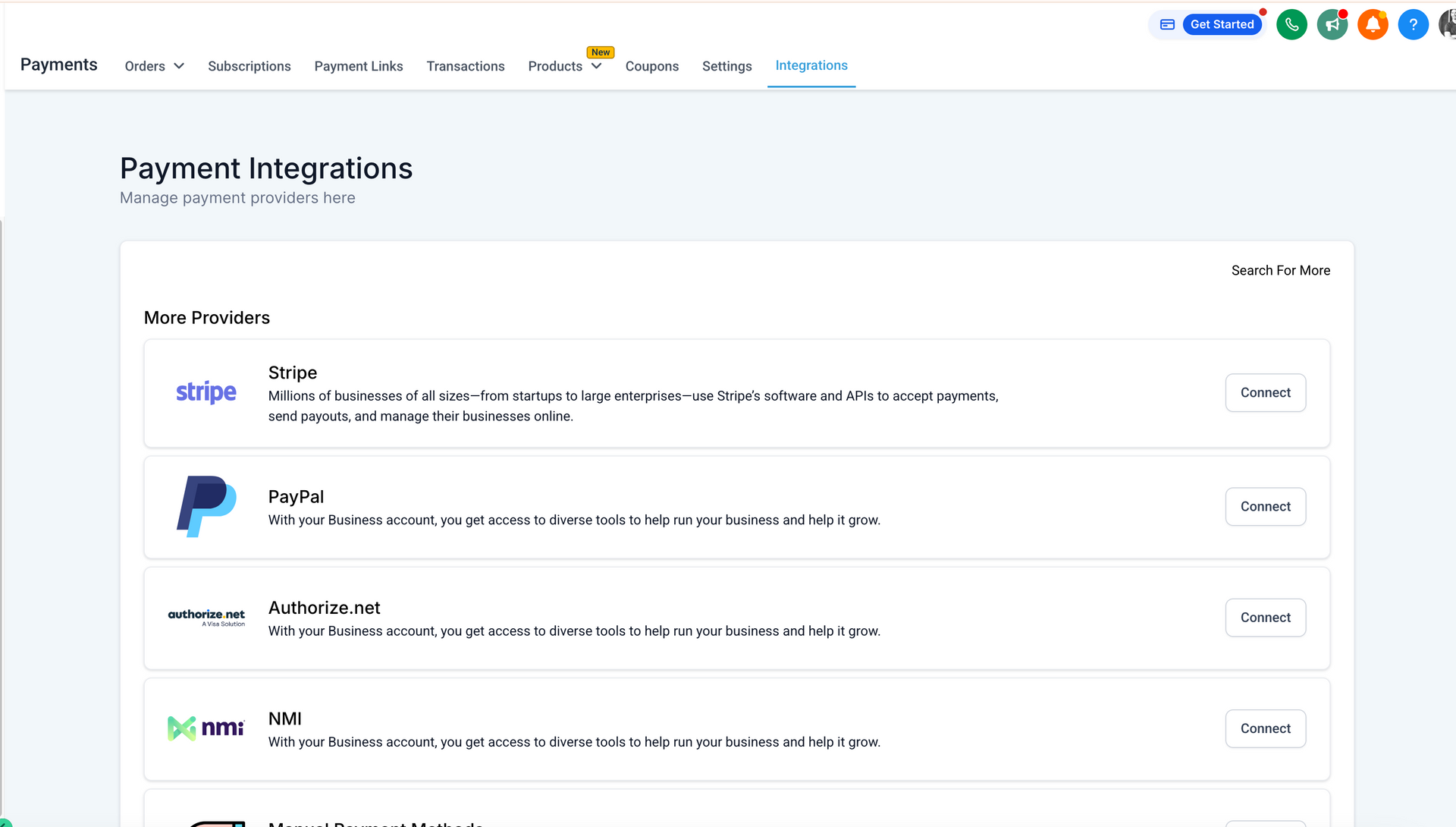
Facebook ads, like most things in the world, are not free. Select a Cost Per Click (CPC) pricing and you will be charged every time someone clicks on the ad or sponsored story. An alternative route is per thousand impression (CPM); you pay every time 1,000 people see the ad. Then tell Facebook how much money you are willing to spend (daily budget or lump sum of total spending while the ad is featured). You can pay with credit, debit, PayPal, or Facebook Ads coupon and the billing is monthly. For more information and clarification on how budgeting for your ad works, please watch this informational tutorial.

https://www.youtube.com/watch?v=8HZSlaU6Zz4

Step 5- Analyze

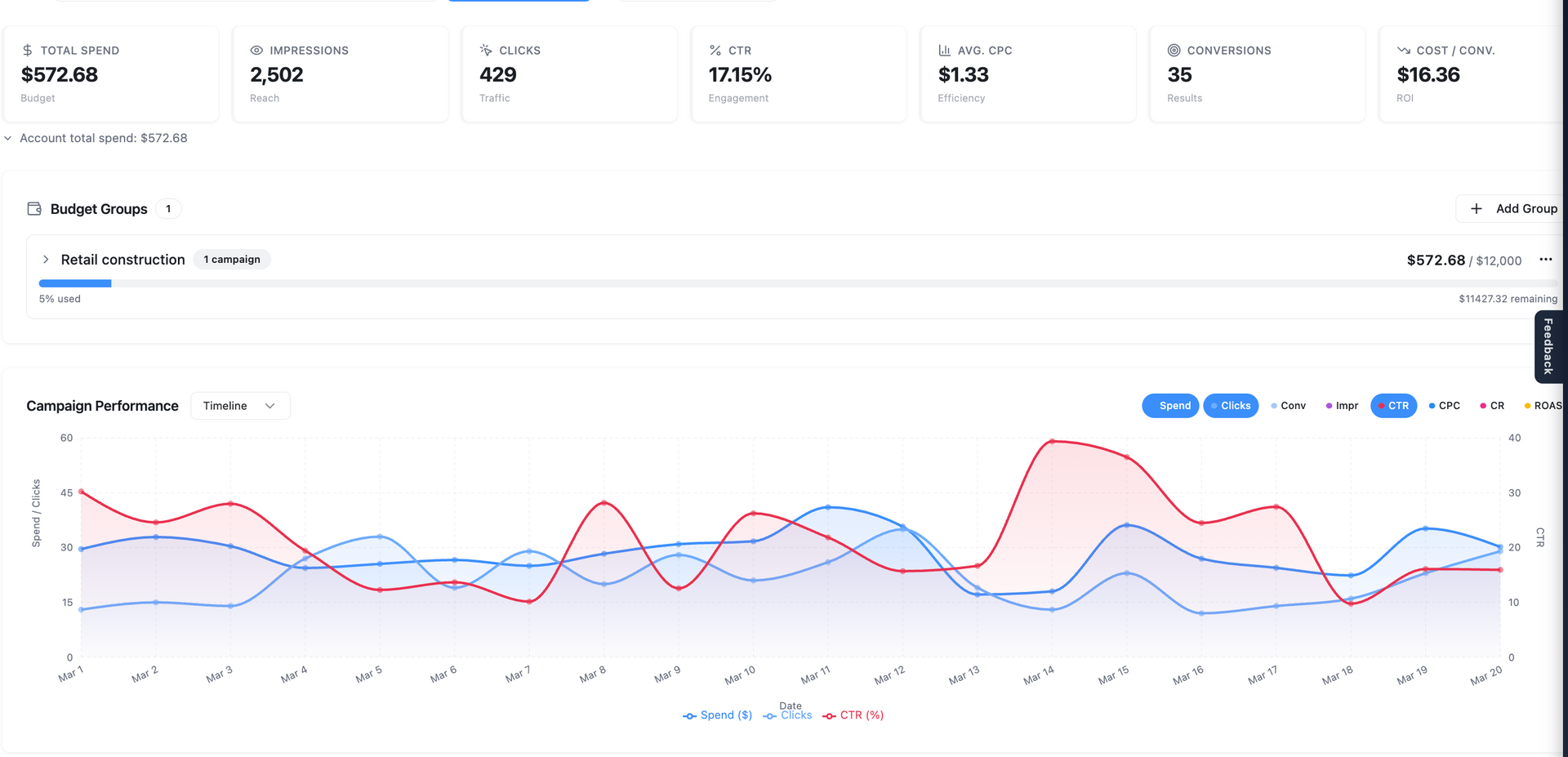
You should monitor your ads regularly, as Facebook does allow trial and error. If the ad is not getting as much attention as expected you can pause the ad to edit the text, increase/decrease bid, or adjust the target audience as you go. Another great feature from Facebook is the Ad Manager. This will show you all the details about your campaign- budget, spending, and scheduling. Then click on the campaign to show how many people have view, clicked, and how often it shows on peoples feeds!

The great thing about Facebook Ads is how it connects the consumer to the business- raising brand awareness. The relevant and engaging photos, videos, and links make Facebook Ads a powerful way to find new customers and build brand loyalty (Facebook, 2015). If you feel like this is over your head or really want to win with your online advertising just fill out the quick call request form on the right hand side of this page!

By WST Support Team March 20, 2026
Marketing Center: Your Complete Command Center for Campaign Performance The Marketing Center inside Central is where strategy, performance, and collaboration come together. Designed for both clarity and depth, it gives you full visibility into your marketing efforts—while making it easy to analyze data, collaborate with your team, and make smarter decisions faster. Whether you’re reviewing performance at a high level or diving into granular details, everything you need lives here. A Unified Overview of Your Marketing Performance When you enter the Marketing Center, you’ll land on the Overview page . This is your starting point—a clean, consolidated snapshot of all campaigns managed by World Source Tech. Here, you can quickly: Understand overall performance across accounts Identify trends and momentum Get a sense of where things stand without digging into reports It’s designed to answer one simple question instantly: “How are we doing?” Campaign-Level Visibility and Control From the Overview, the Campaigns tab allows you to go deeper. You’ll see performance broken down by individual campaigns, giving you a clearer picture of: Which campaigns are driving results Where optimizations may be needed How performance changes over time You can also adjust date ranges on the fly—whether you want to analyze last month, compare time periods, or review a custom range. This flexibility allows you to move beyond static reporting and into real analysis. Audience & Targeting Insights: Understanding the “Why” Data becomes significantly more valuable when you understand the story behind it. Inside Audience & Targeting Insights , you can explore: Demographics – Who your audience is Locations – Where your engagement is coming from Devices – How users are interacting with your campaigns Keywords – What people are searching for and responding to These insights help you move from surface-level metrics to strategic understanding. Even more powerful—this data can be viewed at multiple levels: Account-wide Campaign Ad group Individual ad This allows you to pinpoint exactly where performance is being driven—or lost. Ad-Level Insights and Real-Time Collaboration The Ads section gives you a detailed look at your creative performance. You can: View live previews of your ads Cycle through variations Review asset-level performance (such as headline effectiveness) But what truly sets this apart is built-in collaboration. You can highlight any part of an ad—like a headline or description—and leave a comment directly in context. Ask questions Suggest changes Tag your account team using “@” This eliminates long email threads and keeps communication exactly where it matters—next to the data and creative itself. Full Keyword Transparency Inside the Keywords tab , you’ll find complete visibility into: Active keywords driving traffic Negative keywords filtering out unwanted searches This ensures you understand not just what’s working—but also what’s being intentionally excluded to improve efficiency and performance. Revenue Tracking and ROI Insights The Revenue Tracker allows you to connect actual business outcomes to your campaigns. You can input revenue data tied to your marketing efforts, enabling: More accurate performance analysis Deeper insights into return on ad spend (ROAS) Better alignment between marketing activity and business results All inputs are flexible—so you can provide as much or as little data as you have available. Google Analytics Integration When connected, the Google Analytics section adds another layer of visibility. You’ll be able to view: User behavior Traffic patterns On-site engagement This helps bridge the gap between ad performance and what happens after the click. Smarter Reporting with Business Context Inside the Analysis tab , reporting becomes more intelligent. By adding Business Context —your goals, priorities, and key business details—you enable more meaningful and tailored performance insights. This ensures that analysis isn’t just data-driven—it’s business-driven . Your account manager will typically configure this, but it can be updated anytime to reflect evolving priorities. Research & Strategic Planning Tools The Research tab is designed to support campaign planning and expansion. You can generate insights into: Target audiences Psychographics Market dynamics Competitive landscape From there, key findings can be saved and organized for future use. This turns the Marketing Center into not just a reporting tool—but a strategy engine . Visual Planning with Boards The Boards feature provides a flexible, visual workspace for organizing ideas and strategy. You can: Map out campaign concepts Save research insights Upload and organize creative assets It’s a collaborative environment where strategy and execution come together. Competitive Intelligence The Ad Intelligence section gives you visibility into how competitors are advertising. This helps you: Identify trends in your industry Understand competitive positioning Discover new opportunities Access to this feature may vary based on your plan, but it’s a powerful addition for staying ahead. Built for Clarity, Speed, and Collaboration The Marketing Center was designed with one goal in mind: To give you complete clarity and control over your marketing performance—without complexity. It combines: Real-time data Deep insights Seamless collaboration Strategic planning tools All in one place. A Better Way to Manage Marketing With the Marketing Center, you’re no longer waiting for reports or piecing together information from multiple platforms. Everything is accessible, organized, and actionable—right when you need it. Clarity. Insight. Collaboration. This is the new standard for marketing performance.
By WST Support Team March 20, 2026
Introducing Central: The Future of Project Management at World Source Tech  At World Source Tech, we’re always looking for ways to improve how our clients experience project management, communication, and account visibility. Today, we’re excited to officially announce the transition from Hub to our new and significantly enhanced platform: Central .
August 1, 2025
How to manage orders in WST Native Store
By WST Support Team April 25, 2025
By WST Support Team December 1, 2024
a woman in a blue jacket is holding a tablet in a server room .
By Michael Weitzman March 4, 2024
Faster load times could increase lead gen.
Show More